BACnet Overview
The following documentation outlines how to utilise the BACnet driver on the Bueno Edge Gateway.
BACnet Discovery
A BACnet discovery is used to scan objects on the connected BACnet network. There are several different methods available on the Bueno Edge Gateway, including:
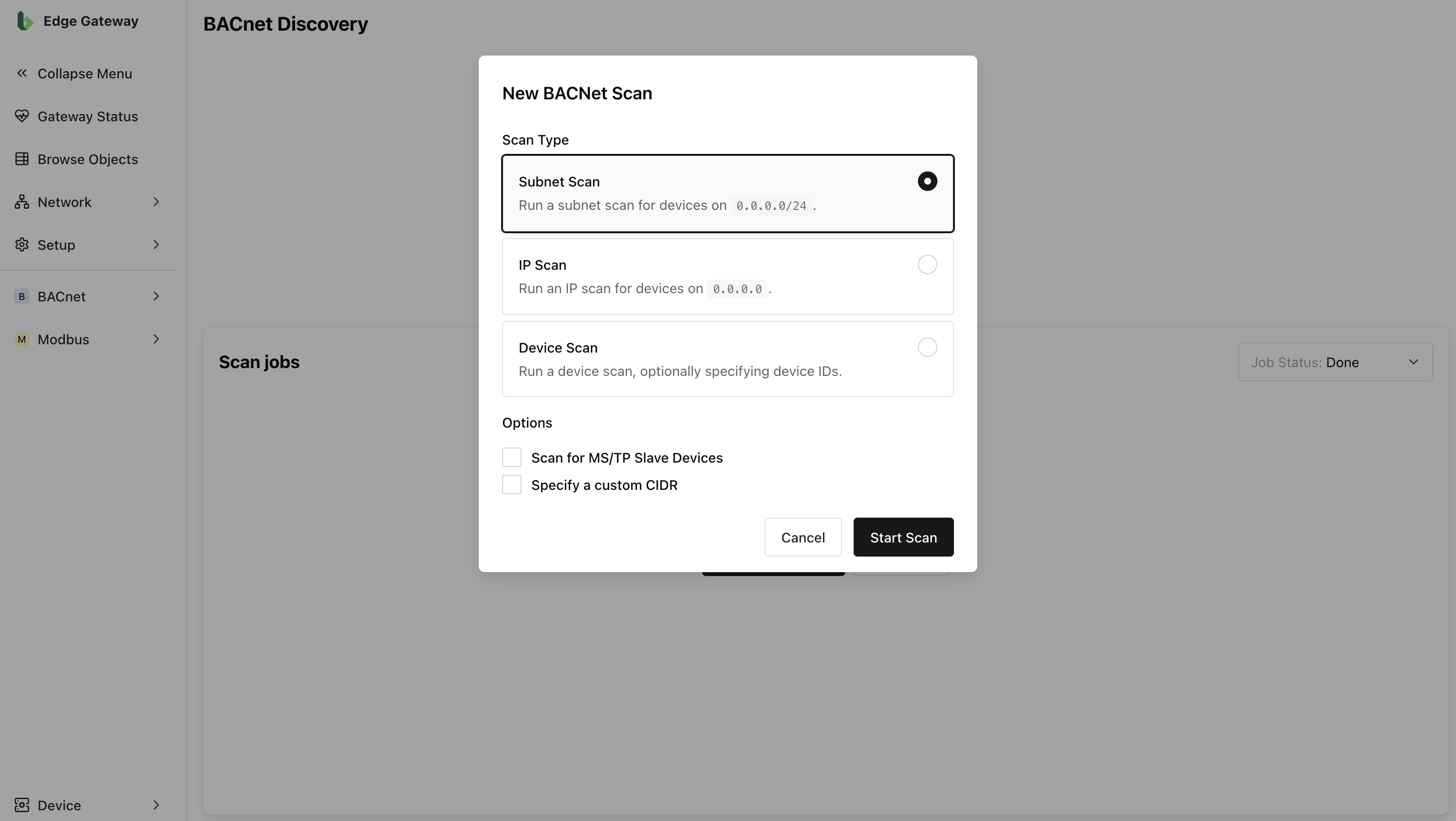
Subnet Scan
A BACnet scan across a specific network range.
- By default, the gateway scans the
0.0.0.0/24CIDR range - Check the box Specify a custom CIDR to specify a specific subnet range
- Check the box Scan for MS/TP Slave Devices to include RS-485 devices in your scan
IP Scan
A BACnet scan that lets you search for a specific device when you already know its IP address. This is typically used for troubleshooting known devices on a network.
- Enter the known IP address of your BACnet device
- Check the box for Scan for MS/TP Slave Devices to include RS-485 devices in your scan
Device Scan
A BACnet scan which attempts to scan all available devices on a network by their BACnet IDs.
- By default, the gateway scans all device IDs available on the network
- Check the box for Target Device IDs to specify a known BACnet device's ID
Once a scan is executed, a background job is started which will proceed to search the network for BACnet objects. You can track the scan job in the table below and review the number of discovered objects by clicking the View button corresponding to the job.
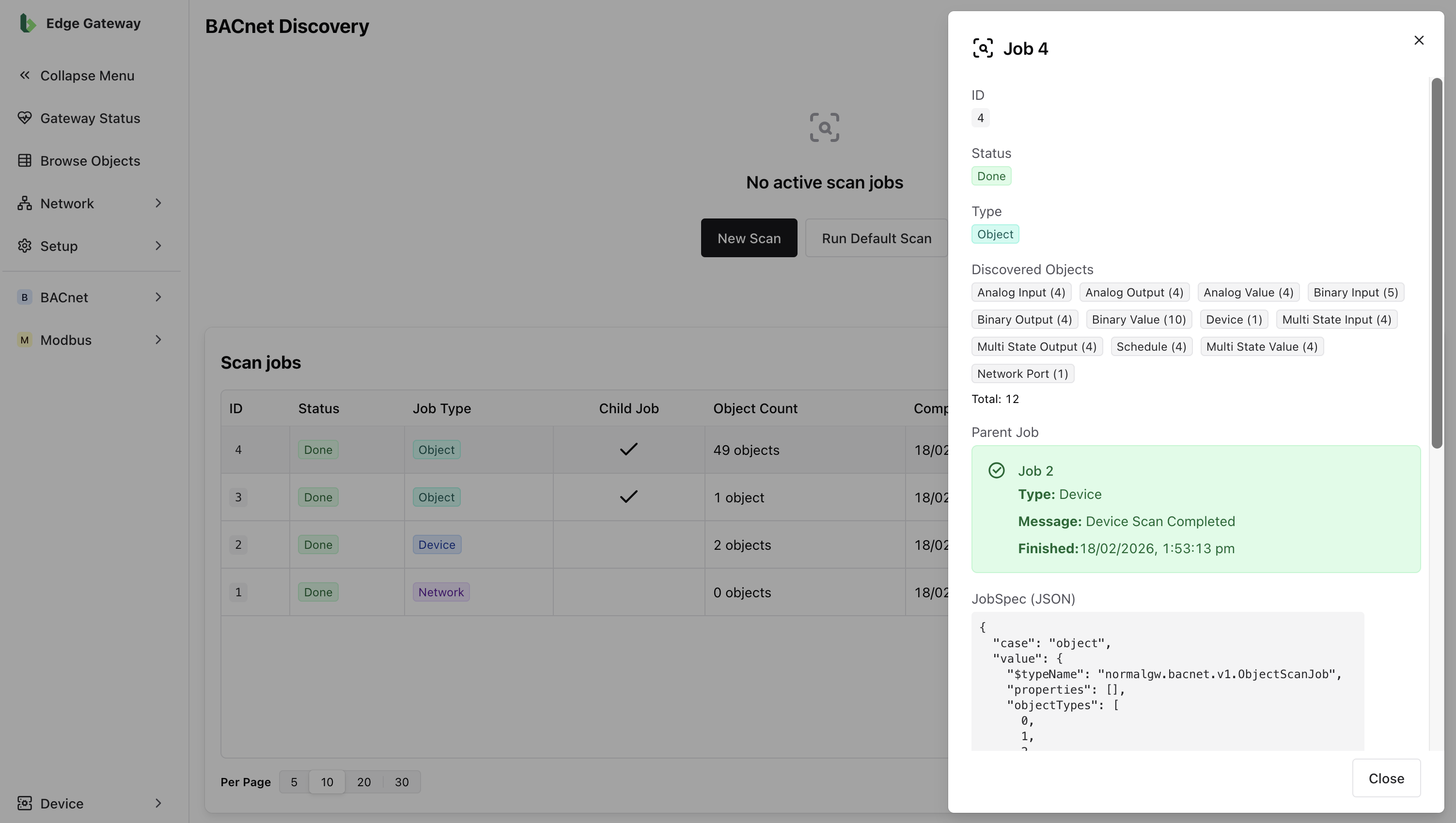
Discovered objects will also be viewable in the Object Browser and any BACnet points will be eligible to be published to the Bueno platform.
BACnet Settings
This page provides advanced configuration options for the BACnet driver, allowing experienced users to fine-tune network settings and device behaviour.
The default settings are typically sufficient, however if you need to adjust them, the following settings can be updated.
- APDU Retries — The number of retries for BACnet confirmed-service operations
- APDU Timeout (Seconds) — The timeout for BACnet confirmed-service operations
- Concurrency — The number of operations to perform in parallel per IP address or serial bus
- Merge Max — The maximum number of ReadProperty requests to automatically merge into a single ReadPropertyMultiple
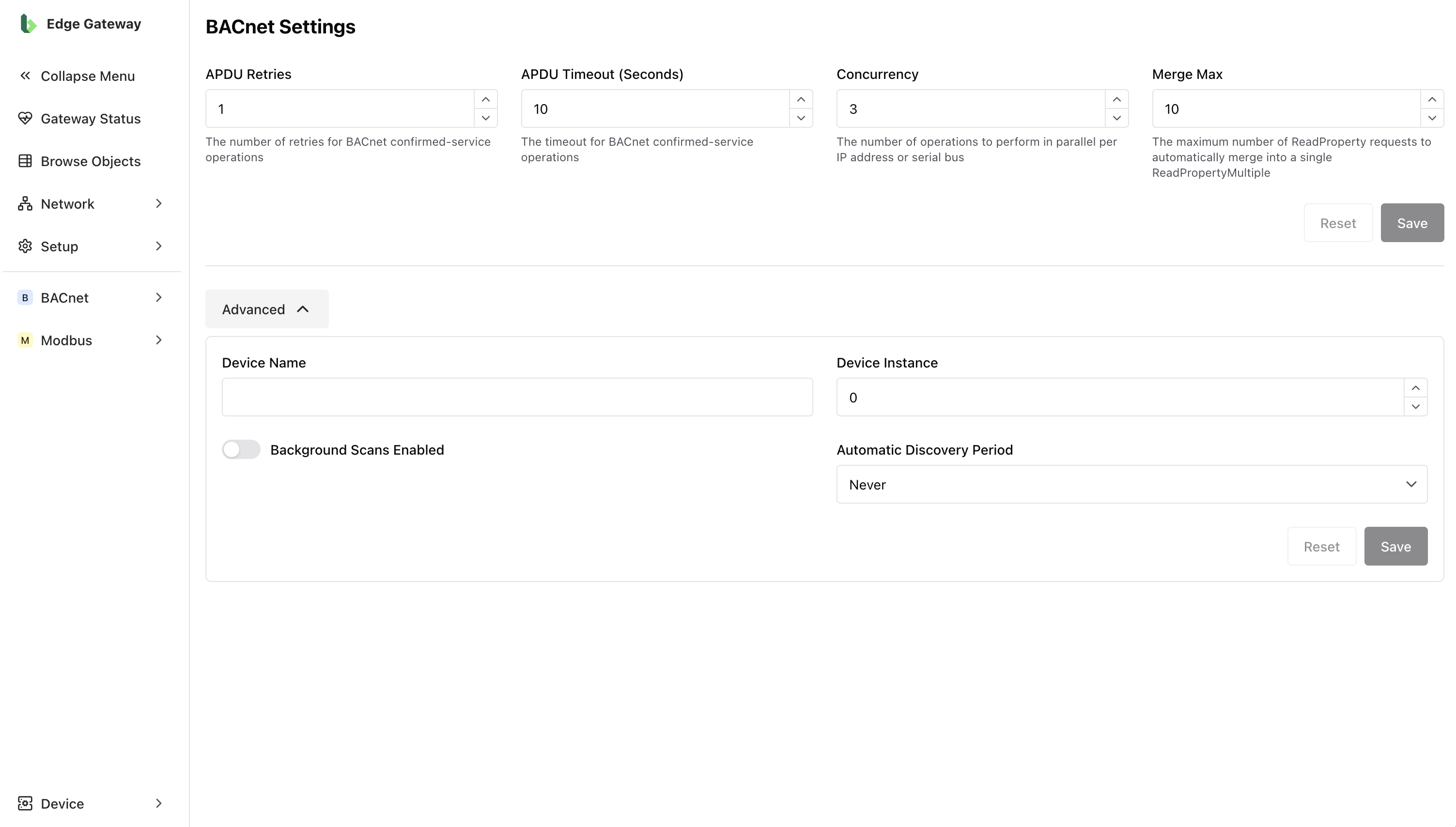
Advanced settings
In some instances, after installation of the BEG application and connection to the BACnet network, there may be a BACnet device ID conflict where the Bueno Edge Gateway and another field device share the same BACnet device ID.
This conflict will prevent device discoveries from being performed and may disrupt the normal running of the network itself. In the Advanced section you can update the BEG's device ID to resolve any conflict, as well as the following properties to change how the device interacts with the network.
- Device Name — The name of the Bueno Edge Gateway on the BACnet Network
- Device Instance — The BACnet device ID of the Bueno Edge Gateway
- Background Scans Enabled — This allows the Bueno Edge Gateway to automatically run BACnet discoveries over a specified period
- Automatic Discovery Period — This sets the background scan period in the setting above
Note: It is important to consider the BACnet network's existing network load before adjusting the above BACnet settings.
BACnet Network Ports
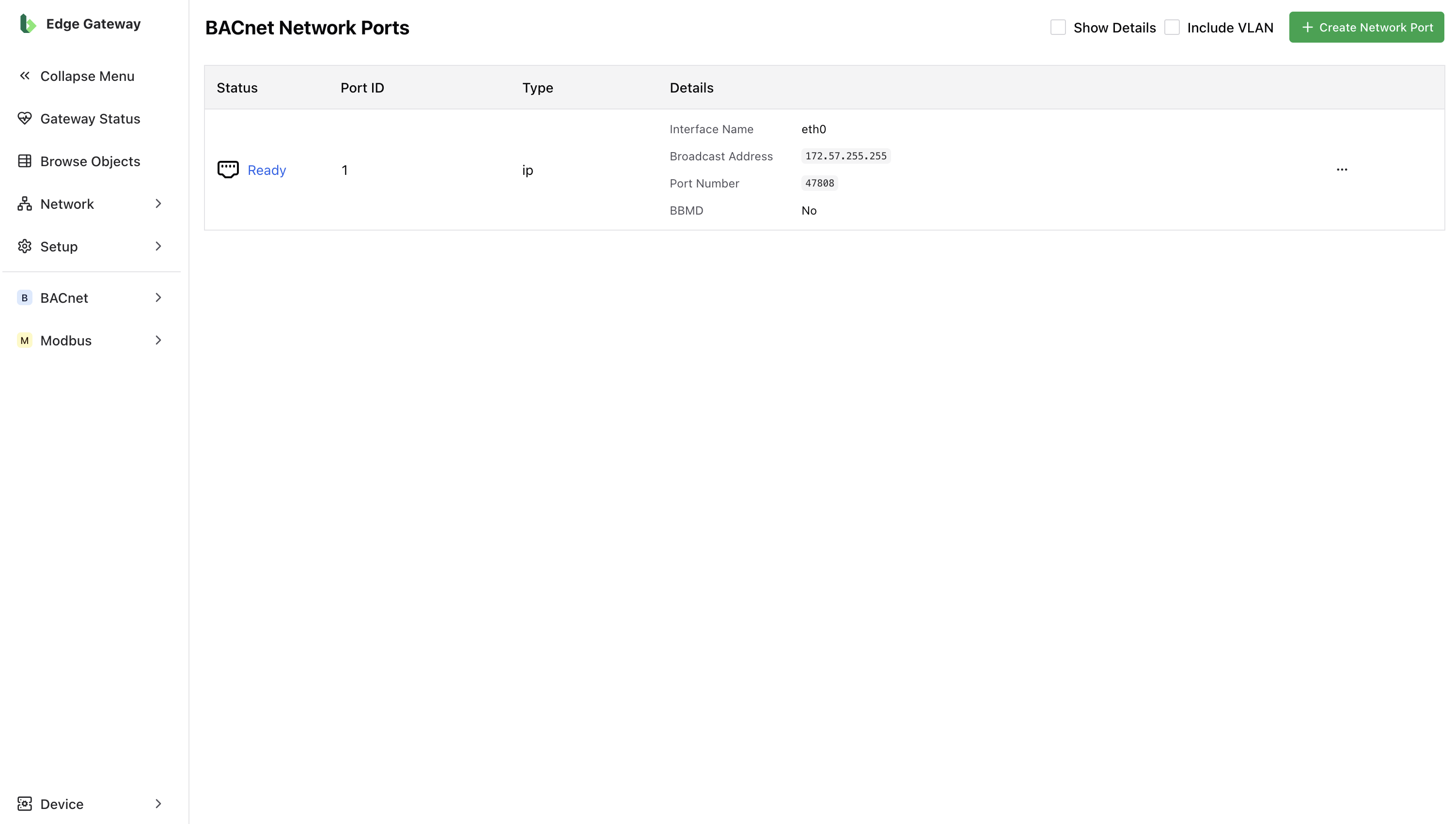
There are multiple different BACnet network types and a BEG can be connected to more than one BACnet network at a time. This page allows you to create, manage and delete BACnet network connections.
Creating a Network Port
Often, the Bueno Edge Gateway will have the correct network port configuration by default. A device with a single BACnet/IP network connection will automatically create a default network port with the appropriate settings for a typical BACnet/IP network.
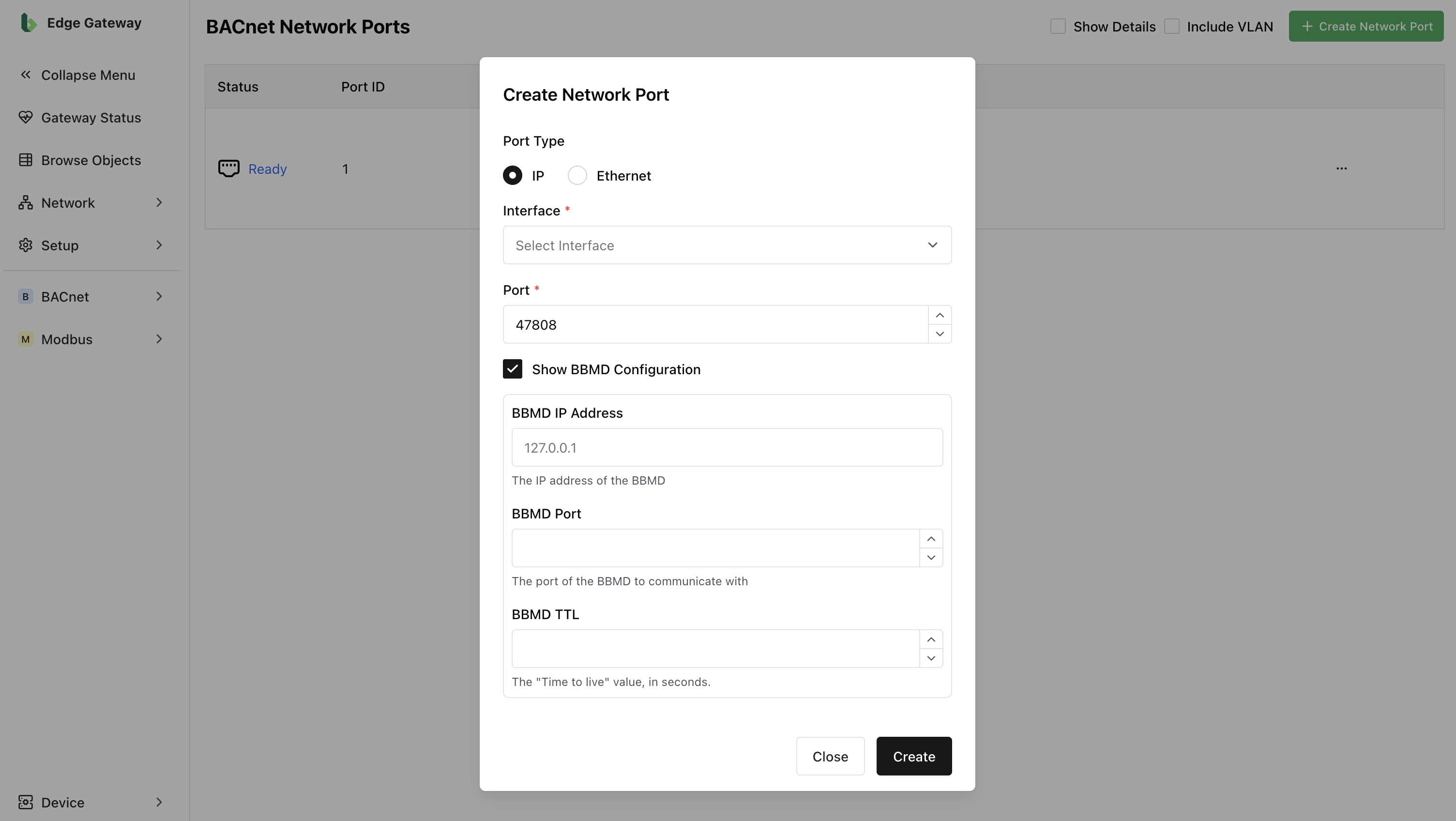
However, if the device is connected to more than one network, or a network that is not an IP network (i.e. Ethernet), or a network that leverages a BBMD, you may be required to set up a specific BACnet network port to access that network.
When creating a network port connection, you have the option to select between: IP or Ethernet.
- IP — Select the network Interface, input the BACnet Port (default
47808), and configure BBMD settings if the network leverages one. - Ethernet — Select the network Interface from the drop down menu.
Deleting a Network Port
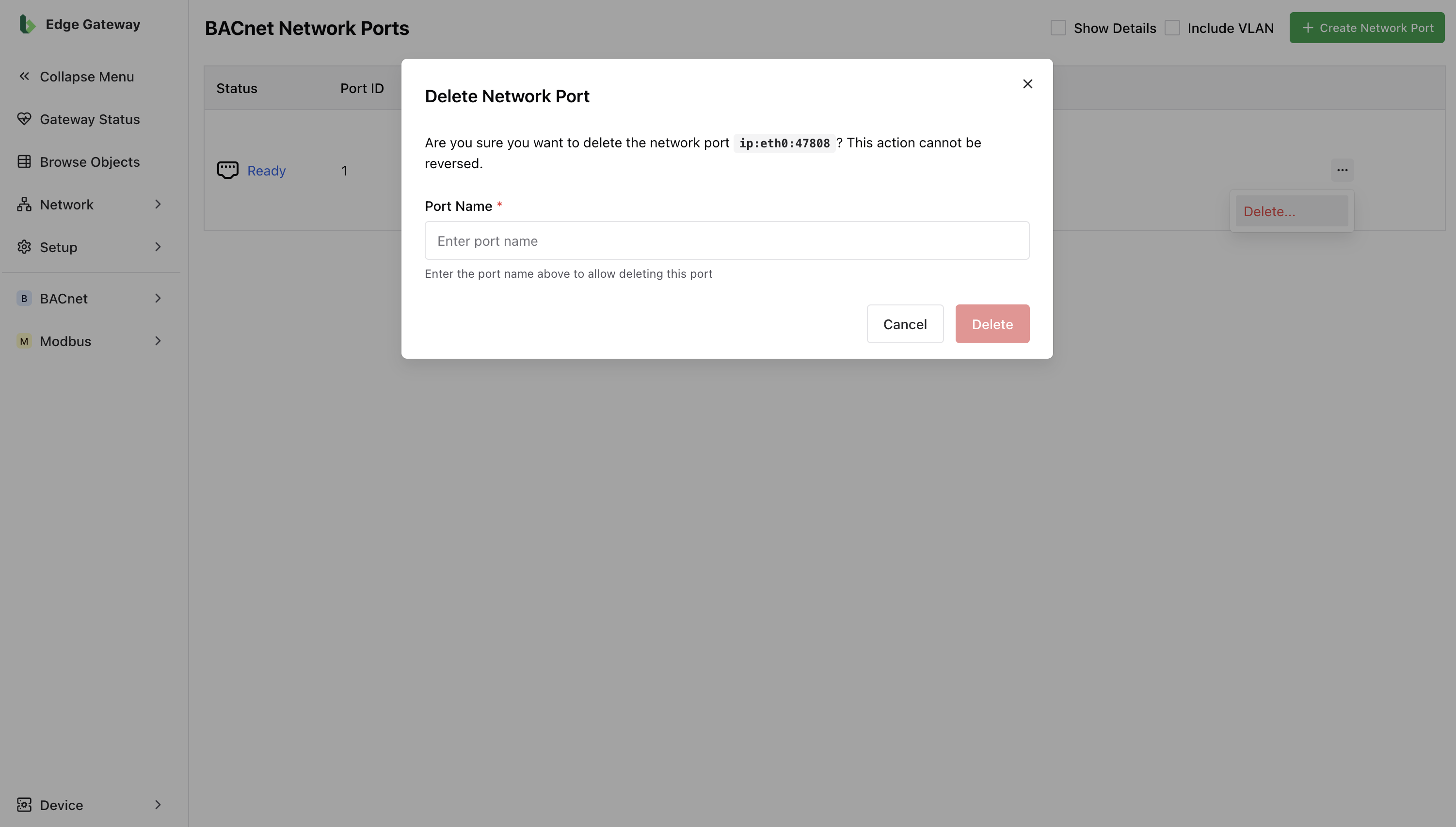
To delete a network port, select the ... button, then click Delete. You will be prompted to type the network port name to confirm. If you need to make changes to an existing network port, you can delete and re-create it.